To call Web Server Dialog you choose menu: - [Tools/Config]. then Turn On Web Server.
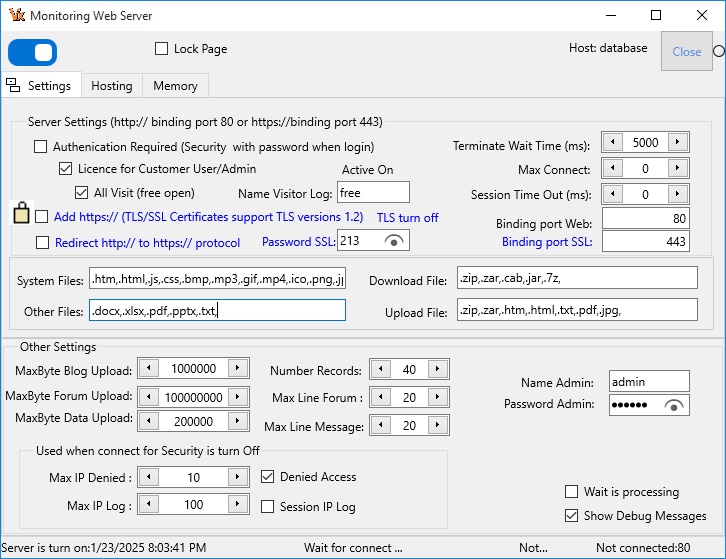
- And then Choose menu: [Tools/Monitor Server].
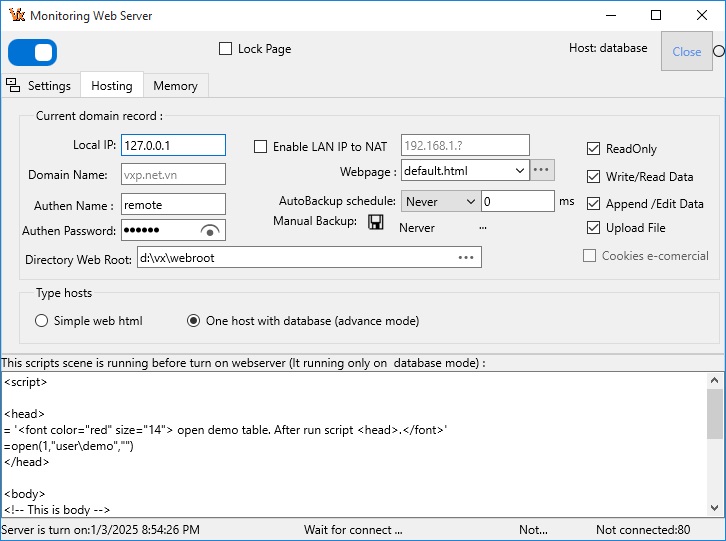
You have 2 way to create web server (2 type host).
- Create a simple webpage (static webpage).
- Create a dynamic webpage with big data.
* Note, this demostration examples run on server. You can test by IP: 127.0.0.1
See monitoring server
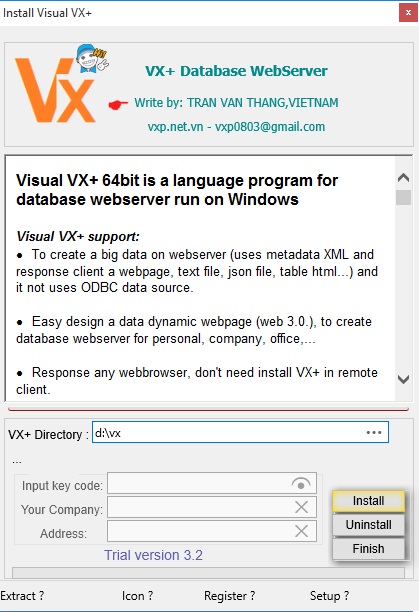
You can download file VXSETUP_***.ZIP from website. Or from CD Disk. Then run it.
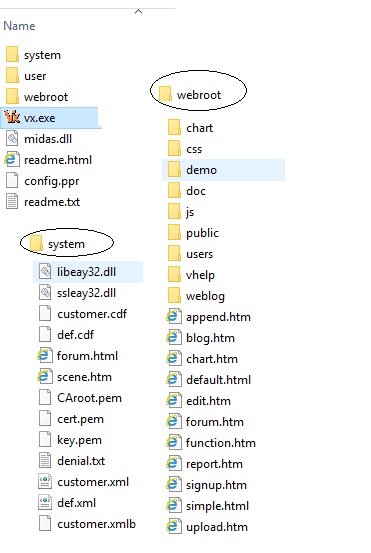
Folder created after install look like:
* Note, you need input Password, Name, Address and Play to put VX.
Select menu Tools\Config to call configuration dialog.
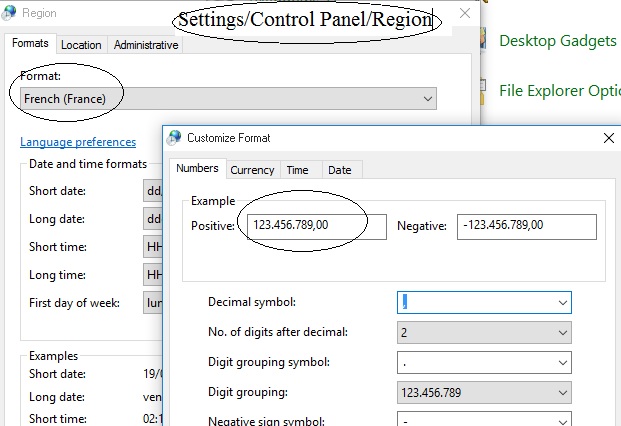
In this dialog you set password, number format and date format.
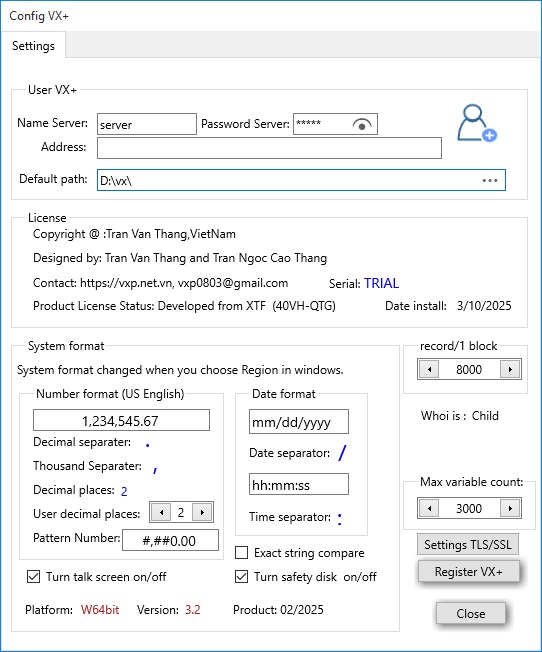
Number format or date format created by Operating Platform (Now is Windows).
- You can set Region is US (English (United Kingdom)) : 1,234.56

- Or you can set Region is FR (French (Frence)): 1.234,56
Or turn Server is On/Off.
1,234,545.67
Is setting in windows or platform system.
12/31/2021Is setting in windows or platform system.
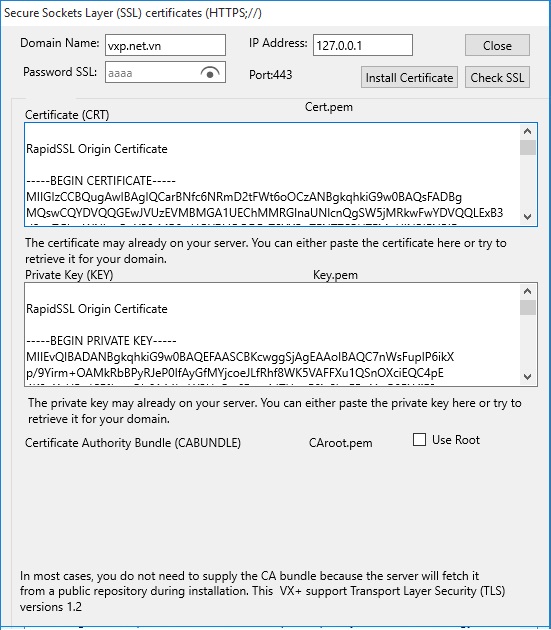
Run file vx.exe. When input password dialog display, you press password and click OK button.
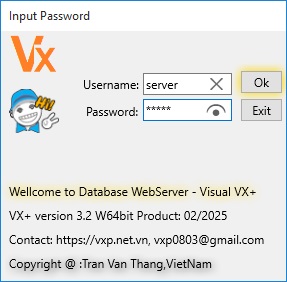
When you finish. You click button [Close] or menu [File/Exit]. If you forget turn of WebSerer Mode.
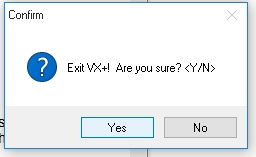
It show confirm dialog:
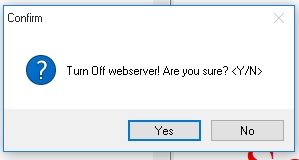
And then show confirm dialog:
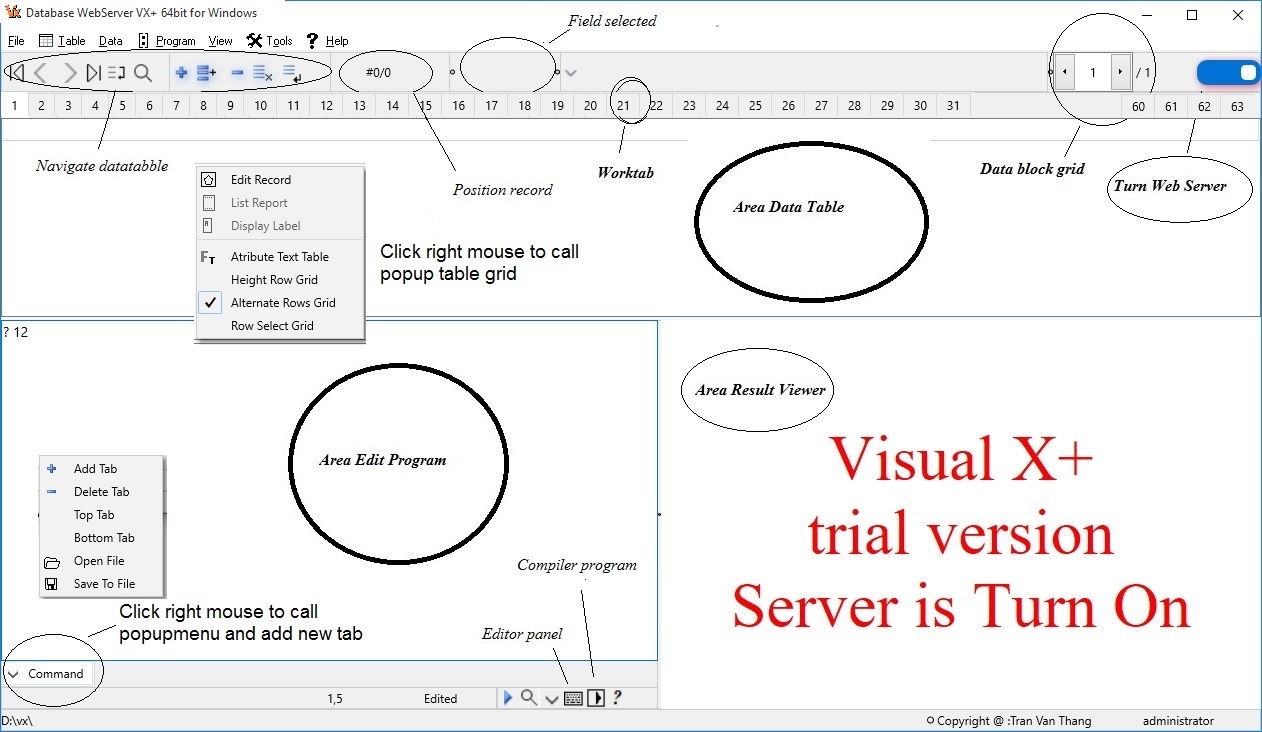
Main Screen desktop created from 3 view area. See above figure.
It show database, It has 32 tab.See topic 7.2.
In program editor you can input command line.
See topic 7.4.
Viewer area is web browser. You can click right button to call popmenu:
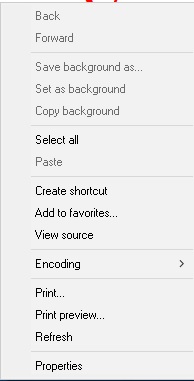
It is webbrowser you can view source, print, print preview,...
Is active when server mode is turn off.
Mainmenu is barmenu and popupmenu:

- - File
- Table
- Data
- Program
- View
- Tools
- Help
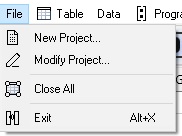
To call project dialog. Create new project.
See create project
Open database project and call project dialog for modify project.
See modify project
Close all data tables are open.
Close VX+ and return Window or Platform.
Table is a database in side server.
Max database file (.cdf) open at moment are 26.
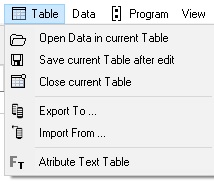
Call open dialog to select database file with extention (.cdf). * Note, file data structure .cdf contain all informations like: script code, edit form, report form, label form...
Current table is open.After edit or modify current data open, you save it to disk.
Close openning database table. It not save to disk.
Current table is open.
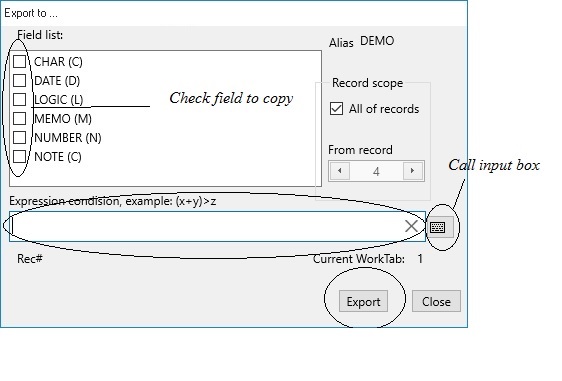
When export dialog show. In this dialog you can choose field list, expression condition,record scope... and [Export] to export. When save dialog show, type a filename to copy.
VX+ support 5 type file (you don't need install ODBC):
- - Database file (.cdf).
- Delimited file (.txt). Note, in memo field character break (\r\n) line changed
- Json file (.json).
- xml file (.xml).
- cds file (.cds).
Current table is open .
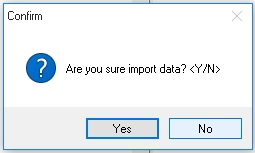
After call import dialog.
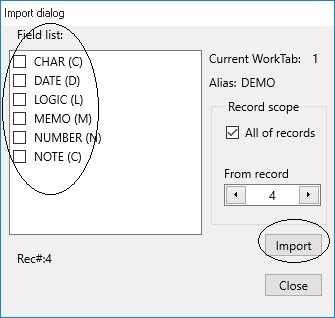
In this dialog you can choose field list, expression condition, and filename to append.
Next you click button [Import] to select file data to append.
VX+ support 5 type file (you don't need install ODBC):
- - Database file (.cdf).
- Delimited file (.txt).
- Json file (.json).
- xml file (.xml).
- cds file (.cds).
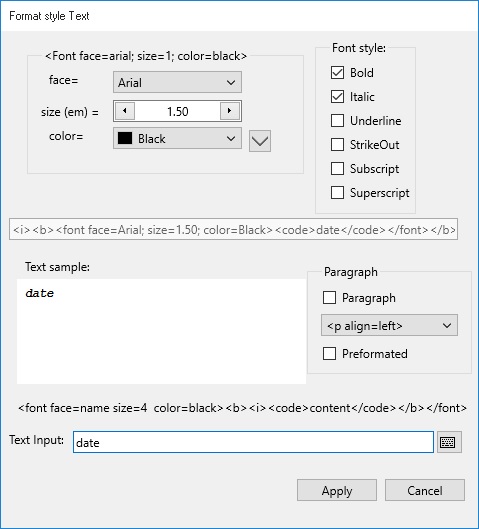
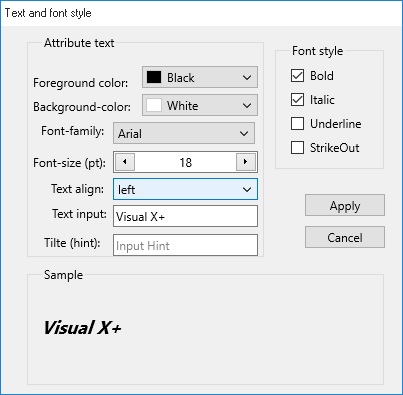
When you want change attribute text, it show Style text Dialog. In this, you choose color, font family, size, bold, italic...After click Apply button to select.
It is enabled when current table is opened.
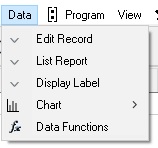
Show menupopup max 10 form for input data table is opened (or press right mouse button on area data tab).
* Note, edit form created in Modify Structure dialog by click menu File/New Project.
If not created, VX+ select default form.
To edit record of table , it changed switch append/edit mode button is on. After choose edit form, when edit record dialog show, turn on Switch edit to modify data.Next, choose Post button if accept or choose Cancel button if abort.
Remember select menu Table/Save Data Table to Disk to write edit data to disk.
* Note:
- Edit form to modify data direct on server. It used in begin process when create data webserver.
- To modify or update data from remote client, you need created (or by any web design applications) webpage html.
See more edit data
Show menupopup max 10 report form.
see report form
* Note, report form created in Modify Structure dialog by click menu File/New Project.
Show menupopup max 10 label form.
see label form
* Note, label form created in Modify Structure dialog by click menu File/New Project.
Show Popupmenu chart, VX support 7 shape chart:
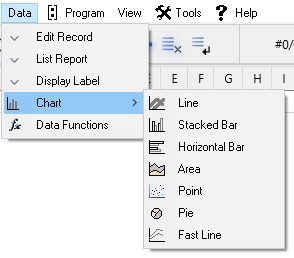
- - Line.
- Stacked Bar.
- Horizontal Bar.
- Area.
- Point.
- Pie.
- Fast Line.
See more chart
Show Data Function Dialog
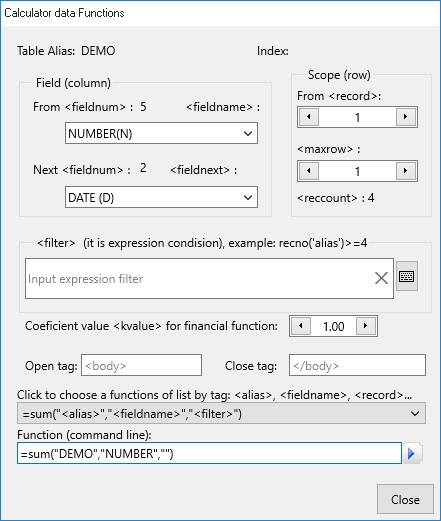
In this dialog you can used functions, like:
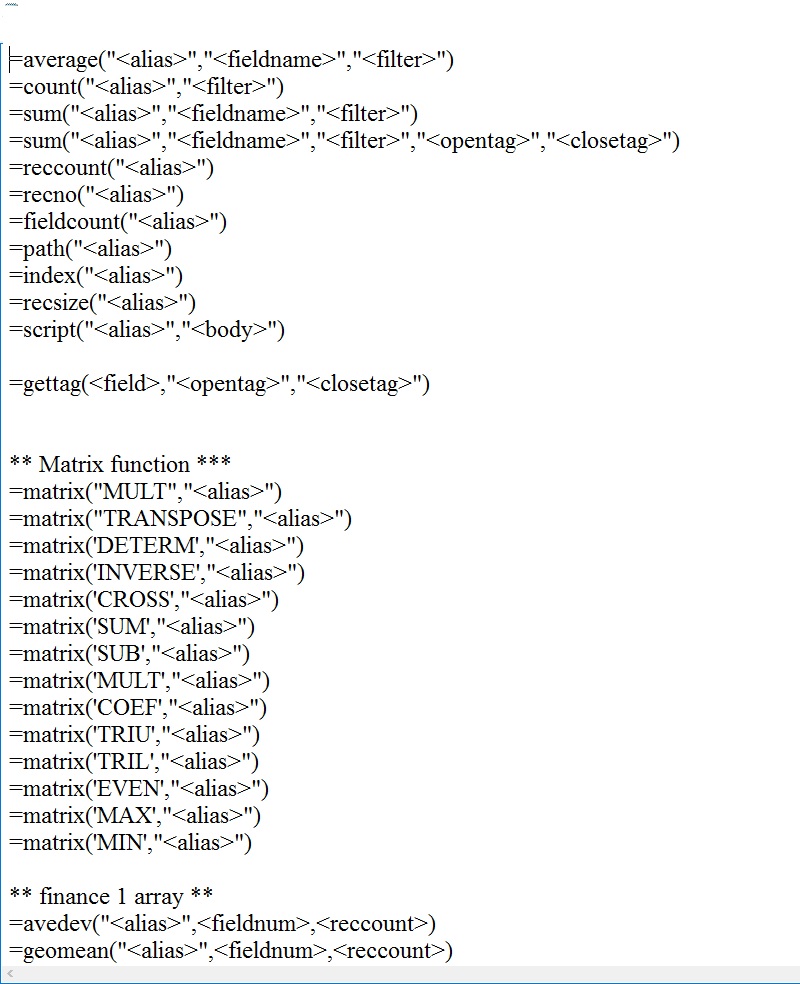
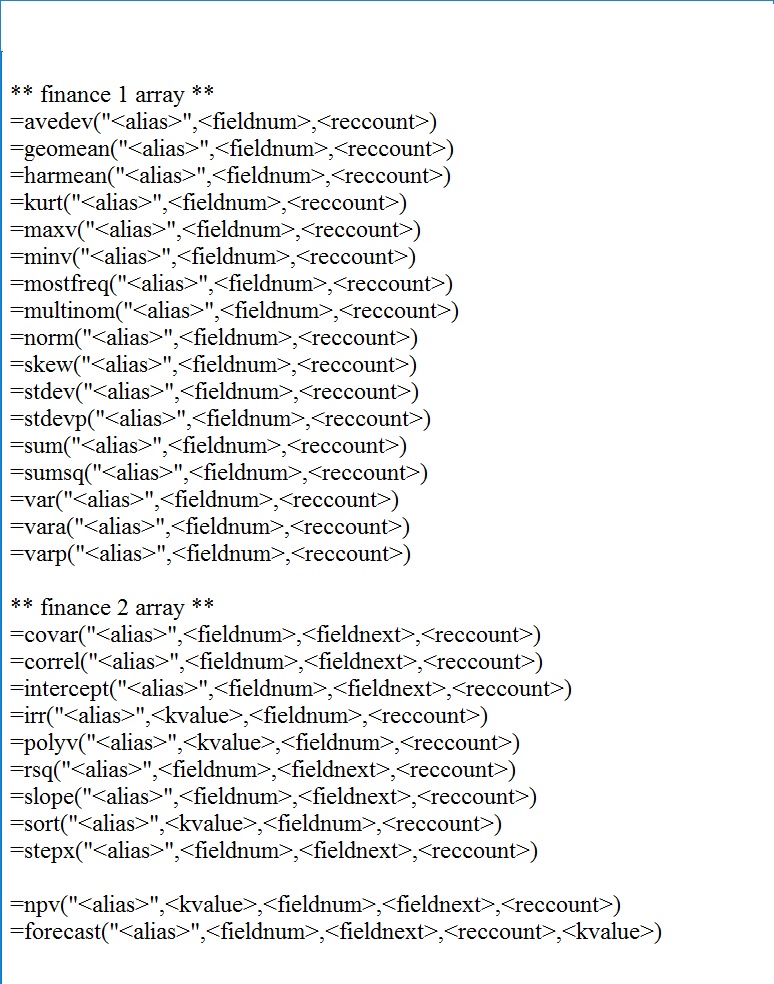
Program is text code, it run in platform VX+.
Max file program open at moment are 5.
Program are many command line. Number of command line not limited.
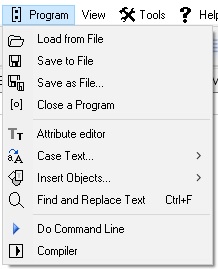
Call open dialog, you select program file name (.ppr) or files with extentions (*.txt, *.rtf, *.html).
Call save dialog, to save text program to disk with filename.
Call save dialog, to save text program to disk with other filename.
To close and save to program file.
Call attribute text style. In this dialog you can change color, family, size, style (bold, italic, underline...) of Font.
Change select text to Upper Case or Lower Case or Title Case.
Insert objects like:
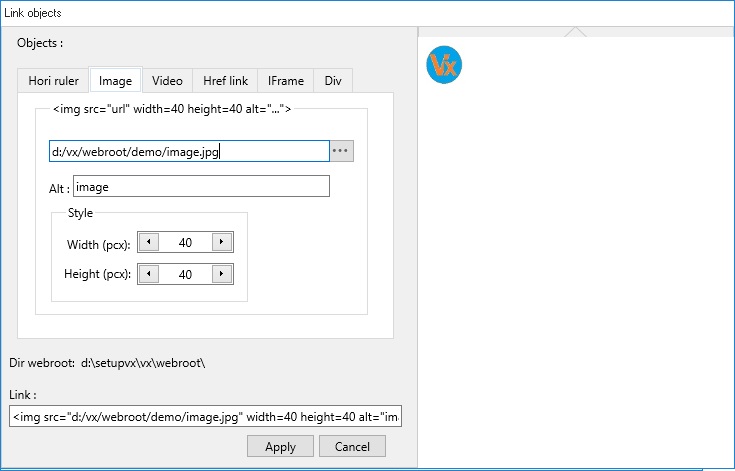
- Links: to call Links Objects dialog, in this dialog you can select (Image, Video or Href or Horizontal line).
When you Apply a code link html created and insert in current cursor.
- Symbols: to call Symbols Character. You can select character from 0 to 65532, or Special character, or Mathematical,or Greek and Coptic, or Currency Symbols, Arrows Symbols, or ...
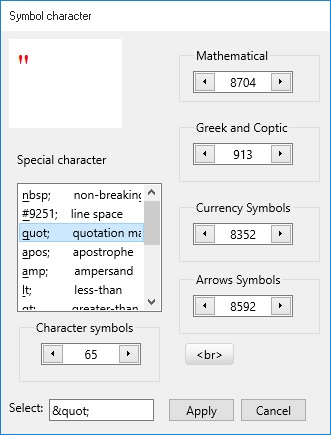
Click to select charater. After Aplly to return html code and insert to current cursor.
- Text: To call Format Style Text Dialog.
You can input text with attribute like: style, color, family, size of font.
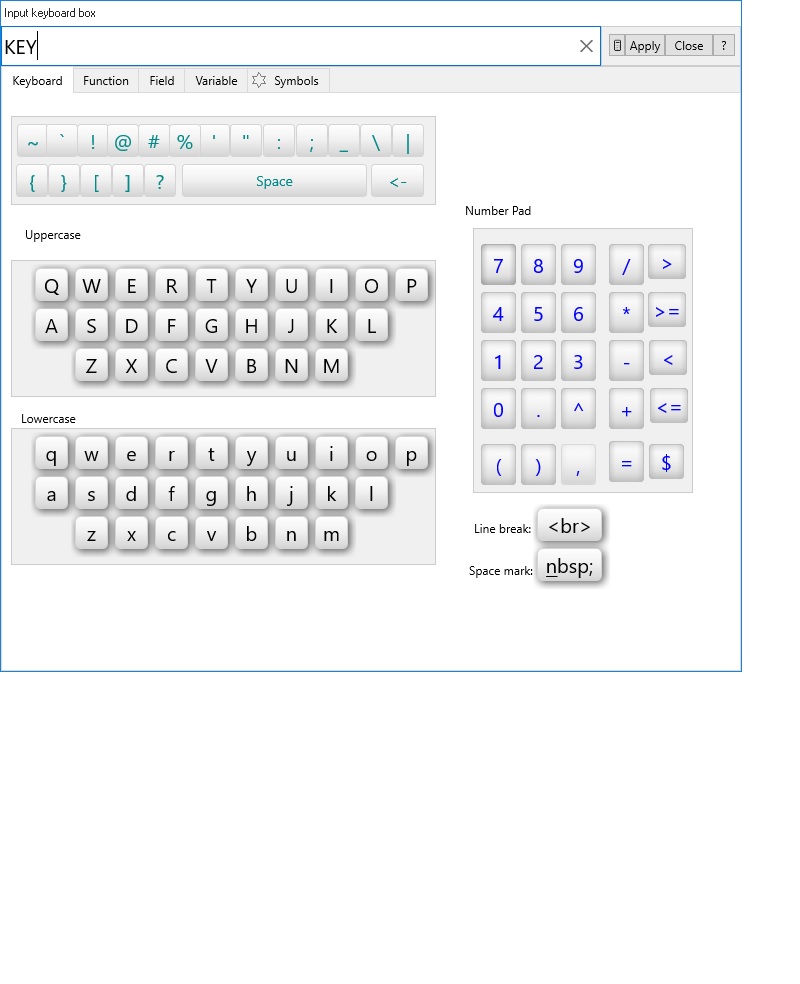
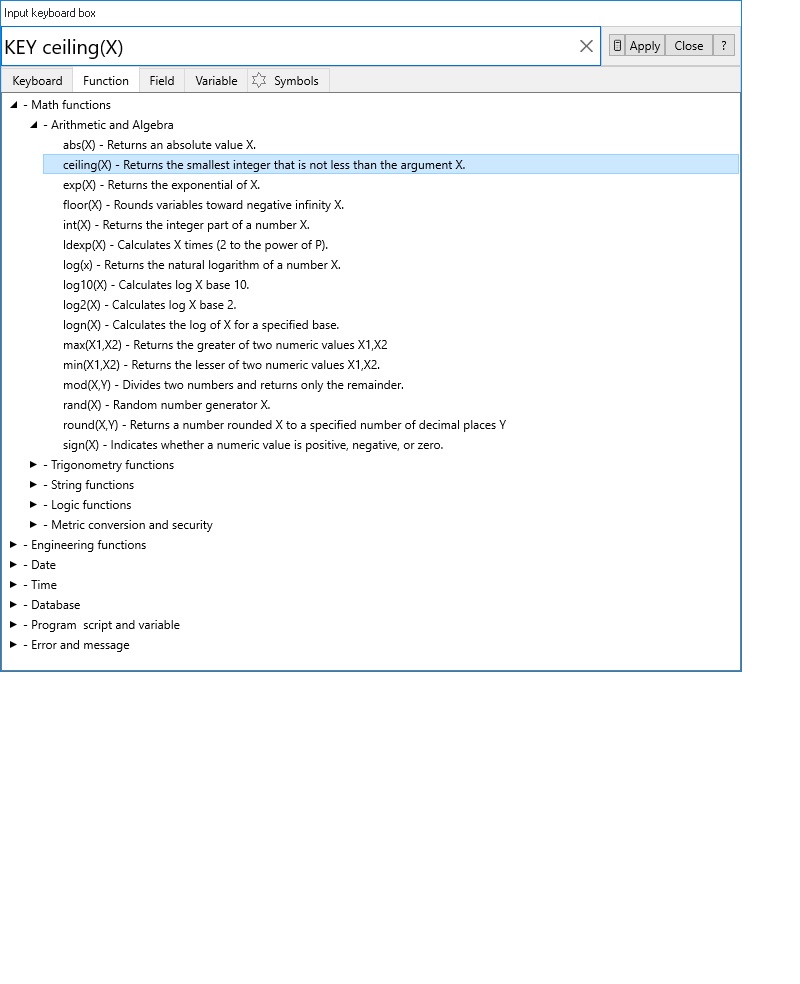
In box input text, you double click to call Input Text Box, in this box you can input:
fields name, functions name, variables name, operations...
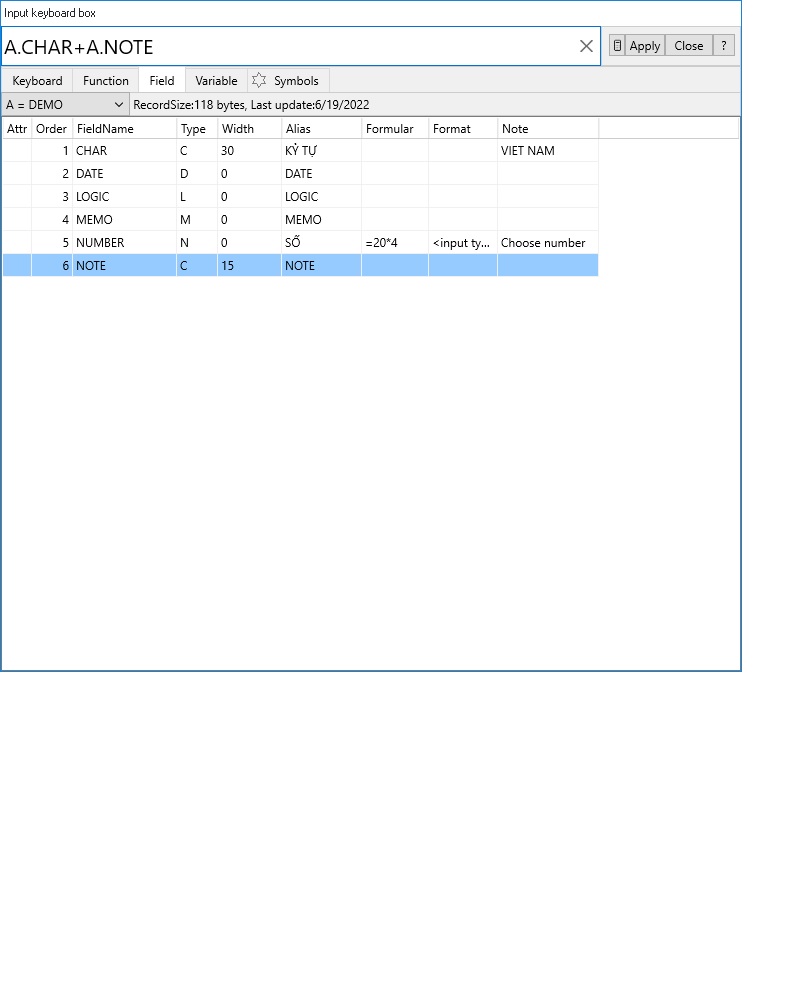
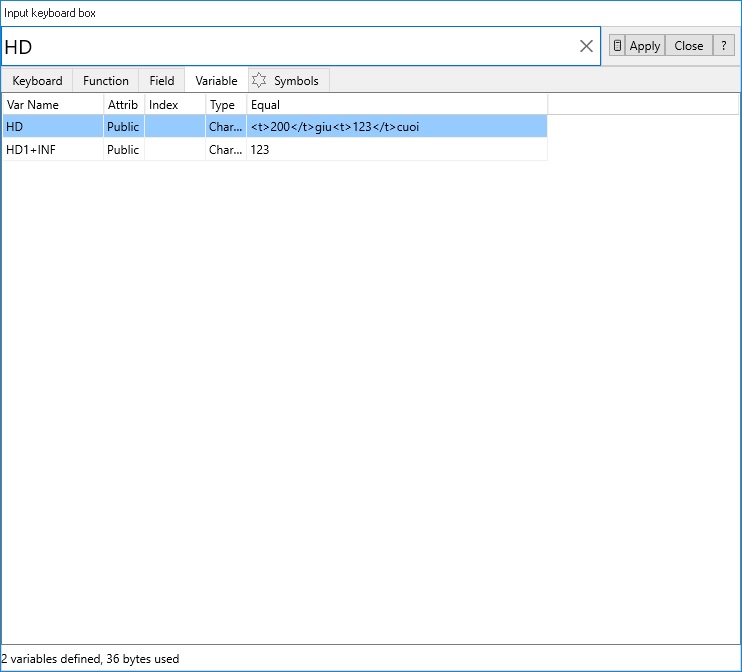
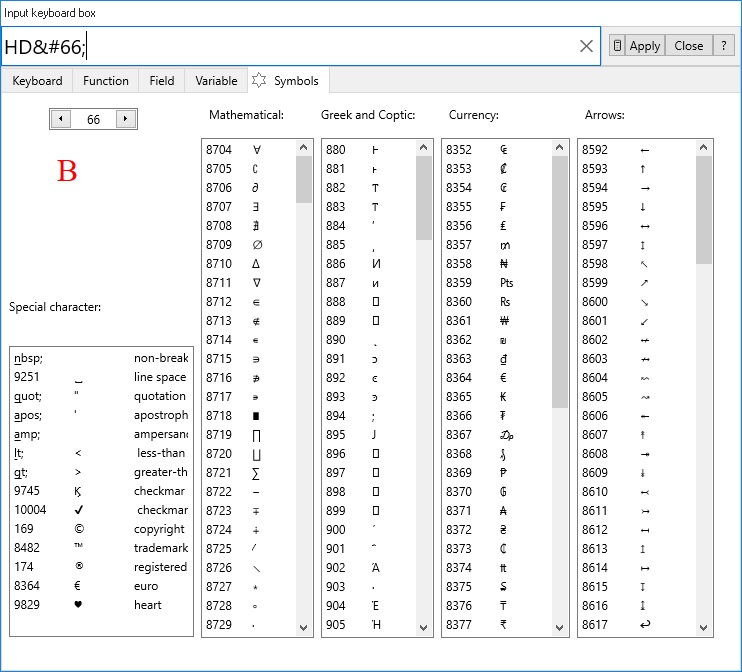
- File Text: Call file dialog. In this dialog you can select file text (.txt) to insert.
* Note, you can press right mouse to call popupmenu to paste from clipboard.
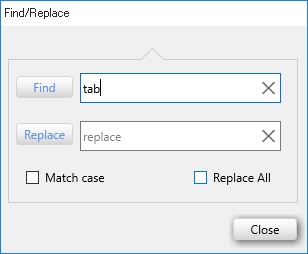
Call Find and Replace dialog. In this dialog you input text for find and Replace.
You can run 1 command line (at line of current cursor) before compiler. or Click in fast Icon.
Call Compiler dialog.
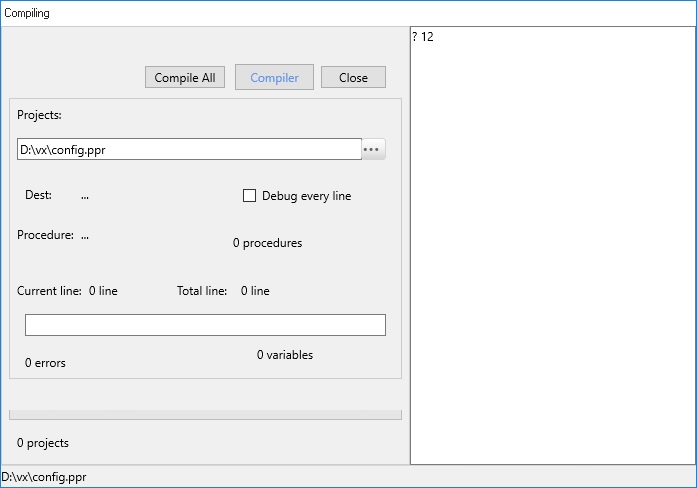
In this dialog you can compiler current text program.
You can compiler one or all file program in a folder.
Text Program after compiler take extension (.xpr).
Example:
Text Program: config.ppr
After compiler: config.xpr
To use it, you press command:
- do config
or
? config()
Viewer area to display result of run program or display message of Visual X+.
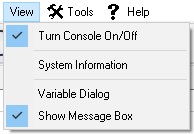
- Turn Console Off: None display result of run a command line in Viewer.- Turn Console On (default) : Display result of run a command line in Viewer.
Display sytem informations like:
- User name :
Computer name:
Version OS:
CPU Level:
CPU number:
CPU type:
RAM:
Disk home name:
Current dir:
File Execute:
Current disk size:
Current disk free:
Call variable dialog.
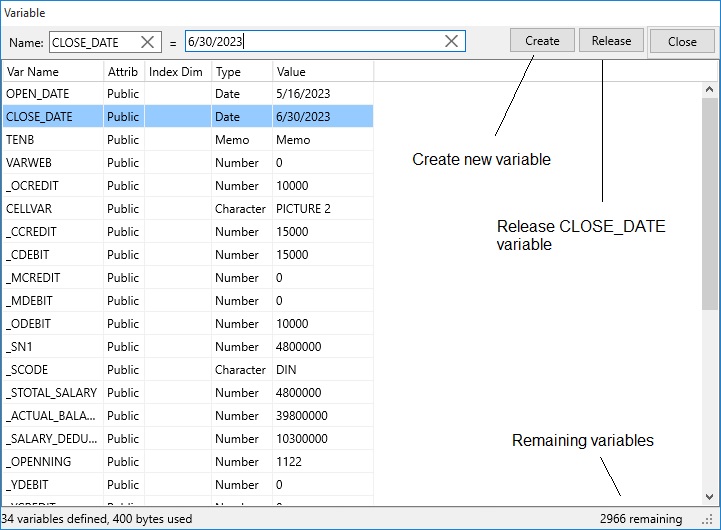
Show message error in window box.
To set configuration username, password, or webserver...
Call config dialog. In this dialog you can input username and password.
Select Default Path to contain Visual X+ files.
To Check Debug mode server, when process design projects. Call webserver window dialog (default is not enabled).
Detail to see Understand Monitor Server
* Note, when webserver is active, main window is locked. It unclock only whenwebserver is turn off.
Show help informations.
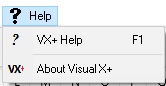
Display help dialog or Press F1. In this dialog you can understand all Visual X+.
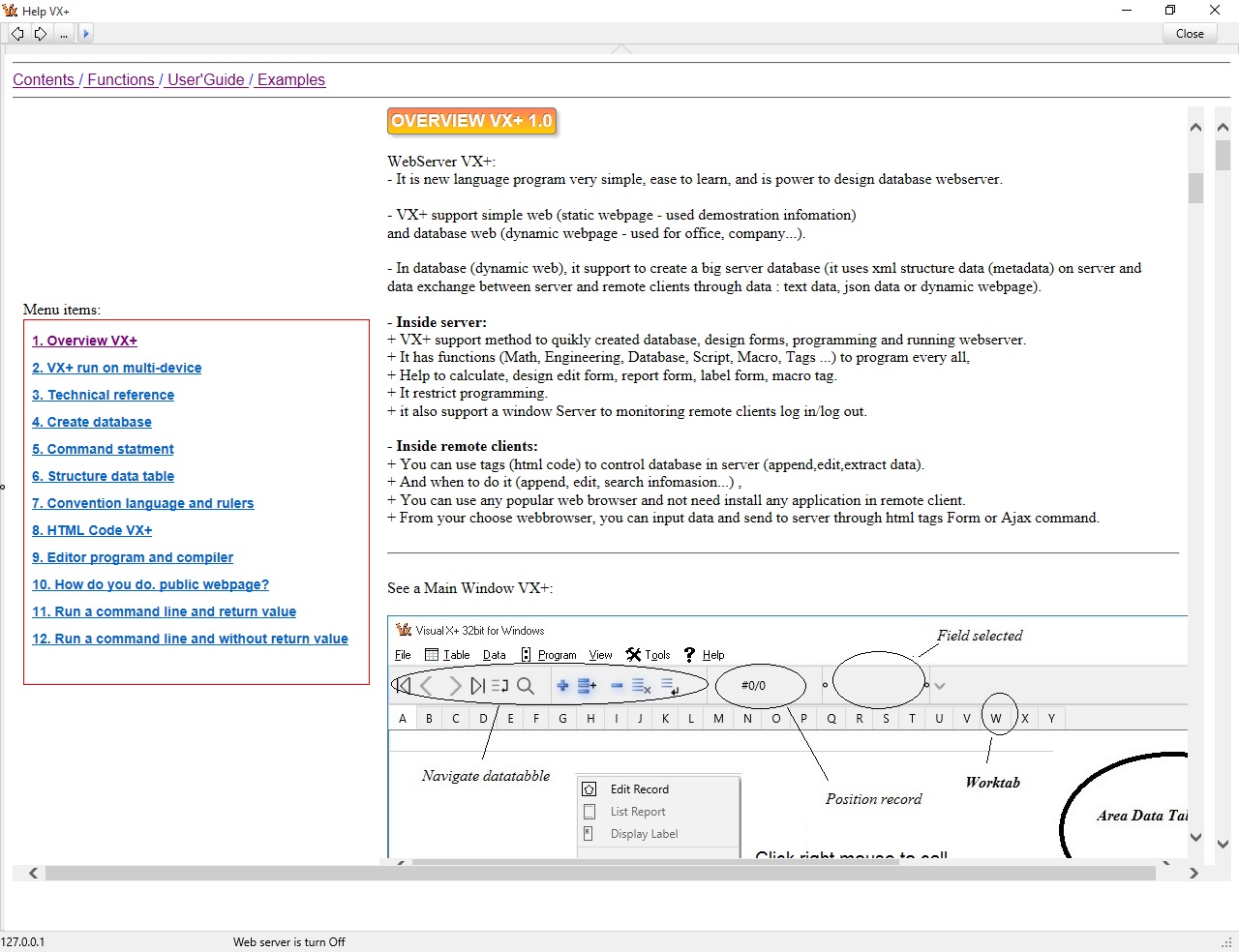
Like topics:
- - Contents.
- Function.
- How I Do.
- Example.
Help Topic
Show about Visual X+ dialog.
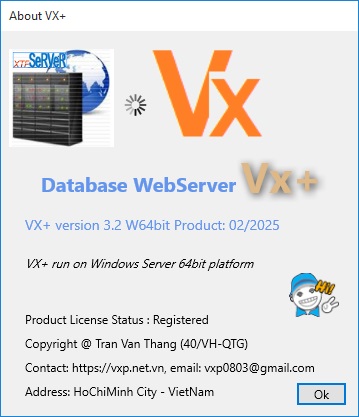
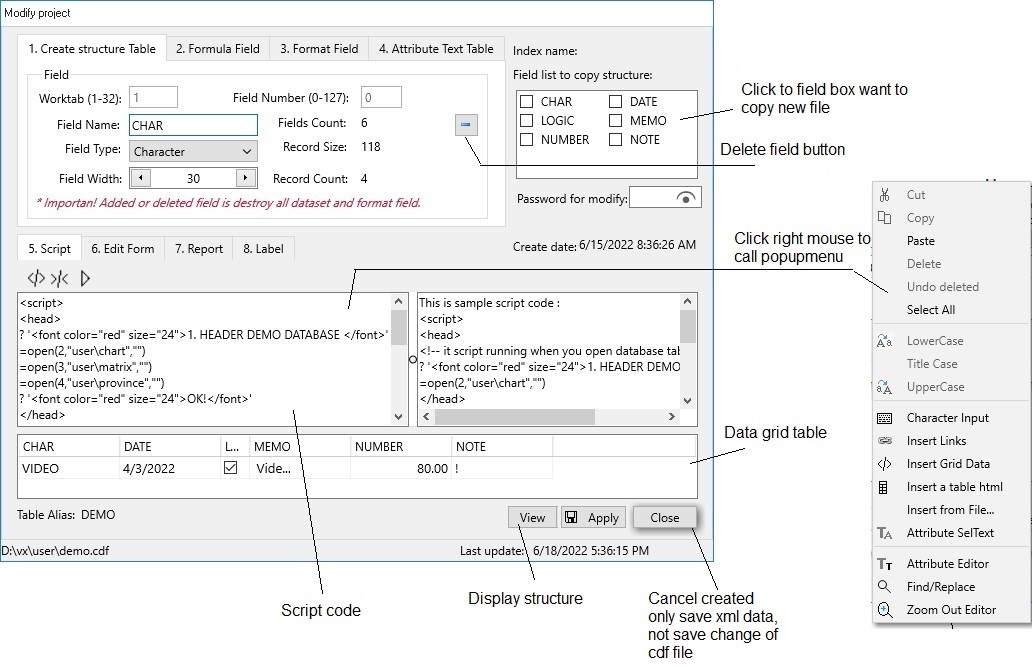
See more project

Panel box contain buttons:
- - Go to first record.
- Go to prior record.
- Go to next record.
- Go to last record.
- Switch append/delete record mode in table.
- Append record.
- Insert before current record.
- Delete current record.
- Delete all record.
- Undo edit record.
When you turn on webserver. This is main server window, all component locked.
Because it very important, we are understand webserver.
See Monitoring Server Form .
Create/Modify structure
This it very important. First, you need create structure data before use webserver.
See more Create/Modify project
Edit form
Create form for input data. *Note, you can create by any other web application.
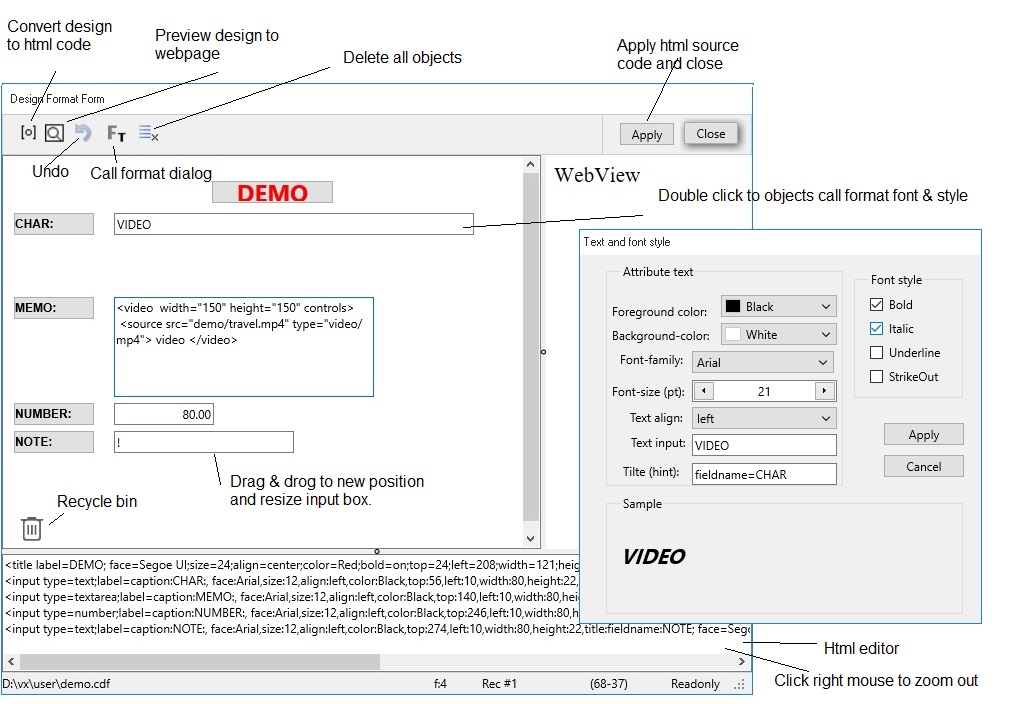
See more Edit form
Report form
Create report like list of records, it created after create structure data.

See more Report
Label form
Create label to display content of a record,it created after create structure data.
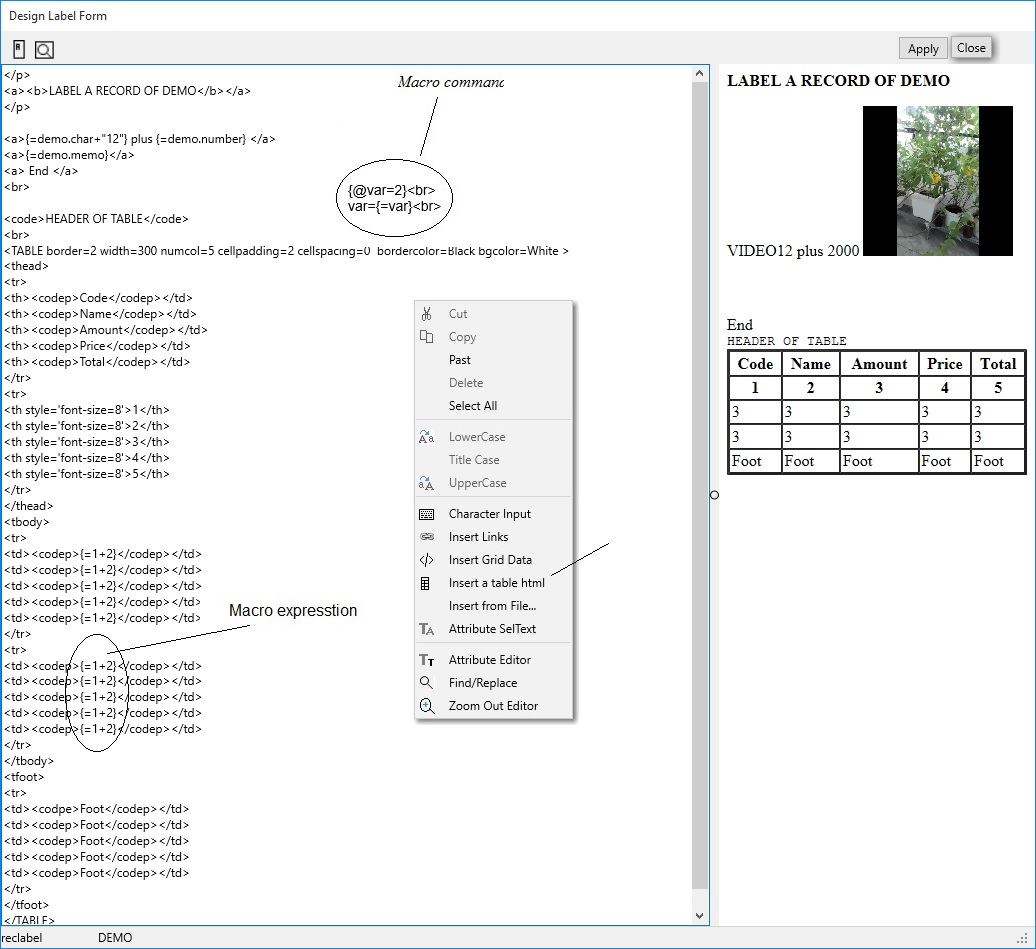
See more Label
Chart form
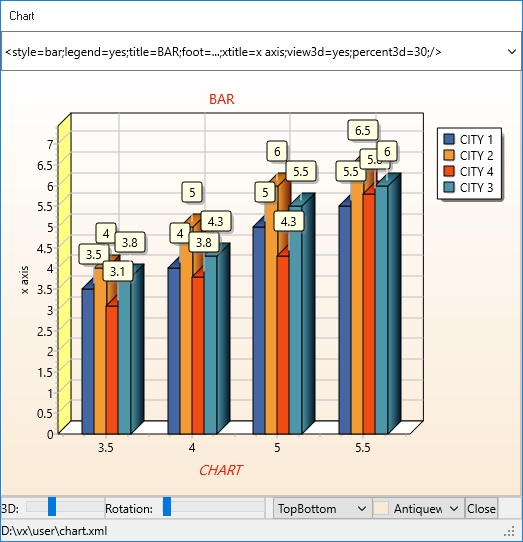
Sometimes you need show data in chart form.
Chart support 6 style chart (line, bar, hozisontal bar, area, point, pie, fast line).
See more Chart dialog
Format Style text
To create style tag html (color font, size font, family font, style : bold, italic, underline).
Export to.../Import from... data table
This dialog help you easy select condition, scope or record before copy/append data.
Export data:
Import data:
Data Function
This is show Data Function dialog.
Find/Replace Text dial
This dialog used in editor program.
Compiling dialog
To compiler program.
Configuration dialog
Monitor Server
It very important dialog. It turn on to monitoring all time when remote client access.
Link Objects
Used for insert html code into edit form, report form, label form.
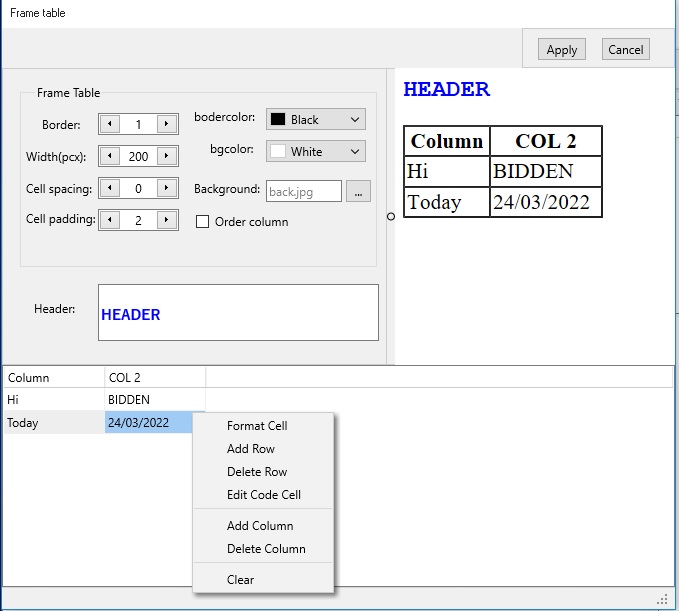
Insert a table html
Used for insert a table html code into edit form, report form, label form.
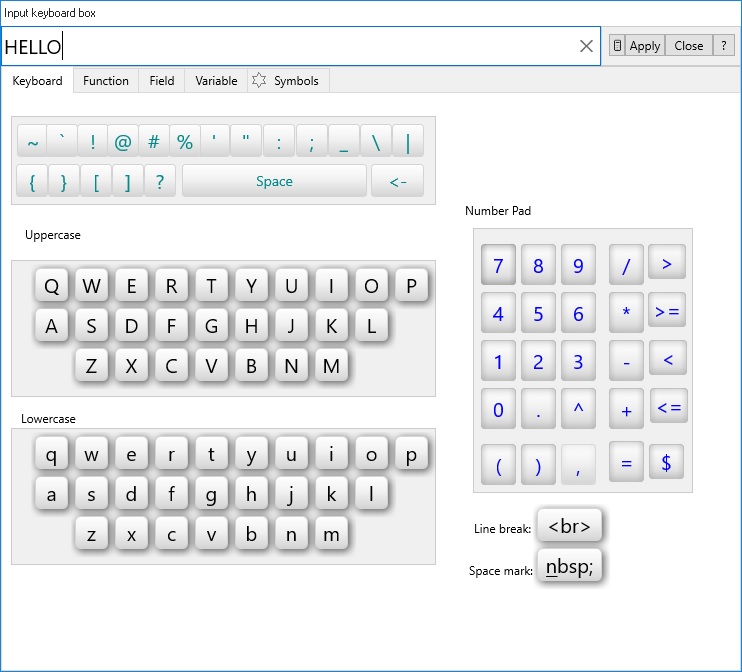
Key input box
Usefull, used when input: Character, Function name, Field name, Symbols unicode character
Symbol character
Used whwen you need input unicode character.
Text Attribute
Used when change font window table or editor program.
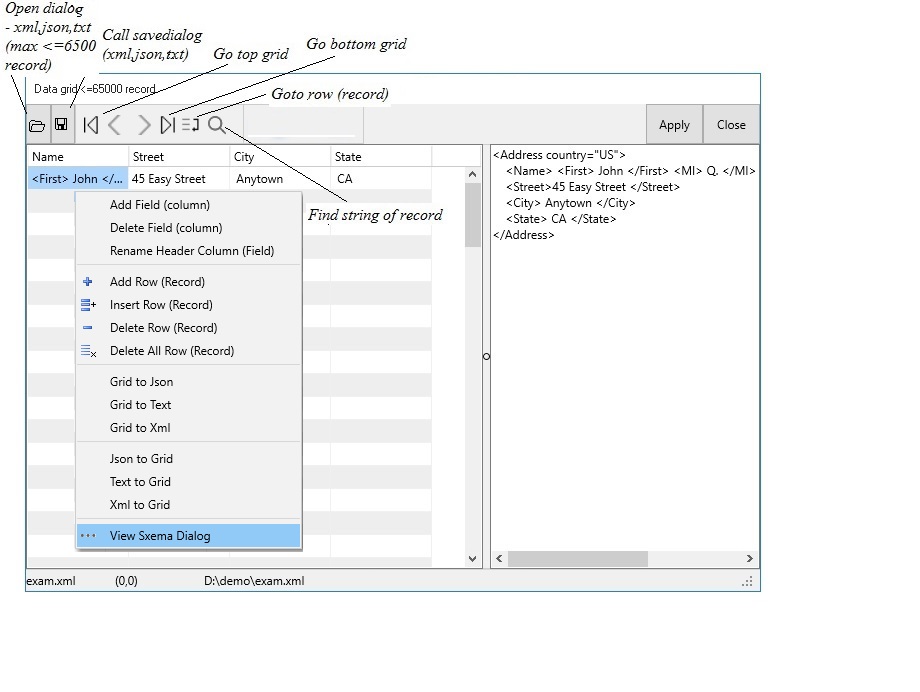
Data Grid
Used when input text data, json and no metadata xml bettwen client and server.
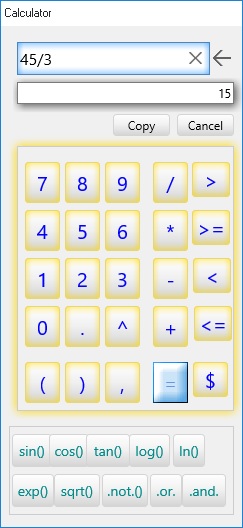
Calculator
Used when input data inside server.
...