FINISH AND BROWSER
This is step Set domain, Turn On Server and Finish.
After design and created database for you application and run debug, trial. Web server is allready to public.
To public this web server for remote clients:
In Windows platform:
- Step 1: connect to Internet. Search my IP ( in web browser you input url: http://ipinfo.io/json or https://whatismyip.com ... ), example:
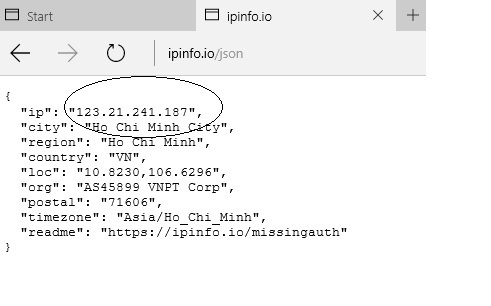
Now, example server IP: 123.21.241.167
- Step 2: Public IP: 123.21.241.167
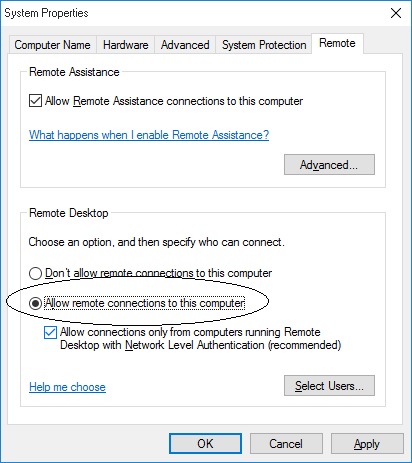
Next, choose [Start/Settings/Control panel/System] in System Properties dialog choose item [Allow remote connections to this computer] like following figura:
- Step 3: Run VX+ application, web server is ready! waiting for remote clients connect with server IP: 123.21.241.167
- Step 4: Inside remote clients, you run web browser (I.E, Google Chrome, FireFox, Ali ....) and press url : 123.21.241.167
See following example :
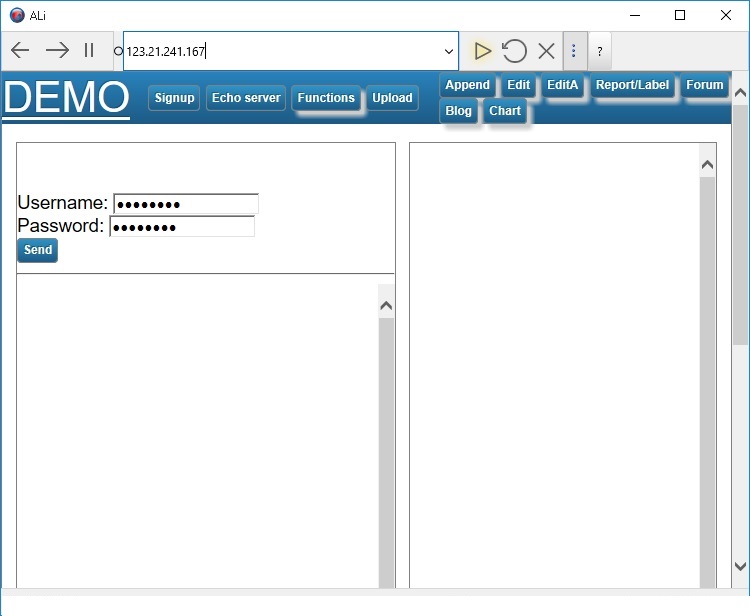
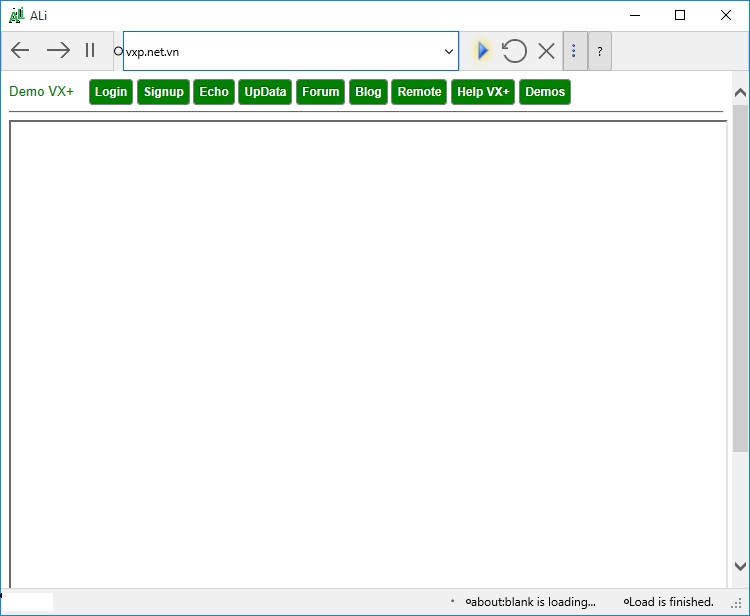
Sometime, not remember IP 123.21.241.167, you can register domain IP with domain name, like: tvt.net.vn.
View more...
Understand uses program in VX+