You have 3 way to create web server (type host).
- Create simple webpage.
- Create many simple webpage.
- Create dynamic webpage with big data.
- You install VX+ in folder: D:\VX
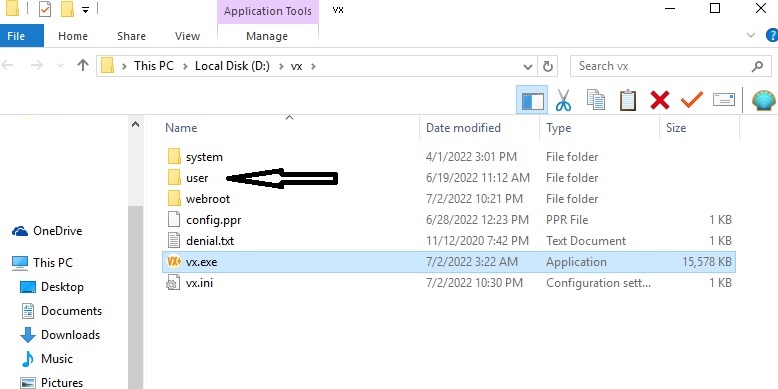
- Data for this example in folder D:\VX\USER
Click to see how created, modify, original data for example
* Note, this demostration examples run on server. You can test by IP : 127.0.0.1
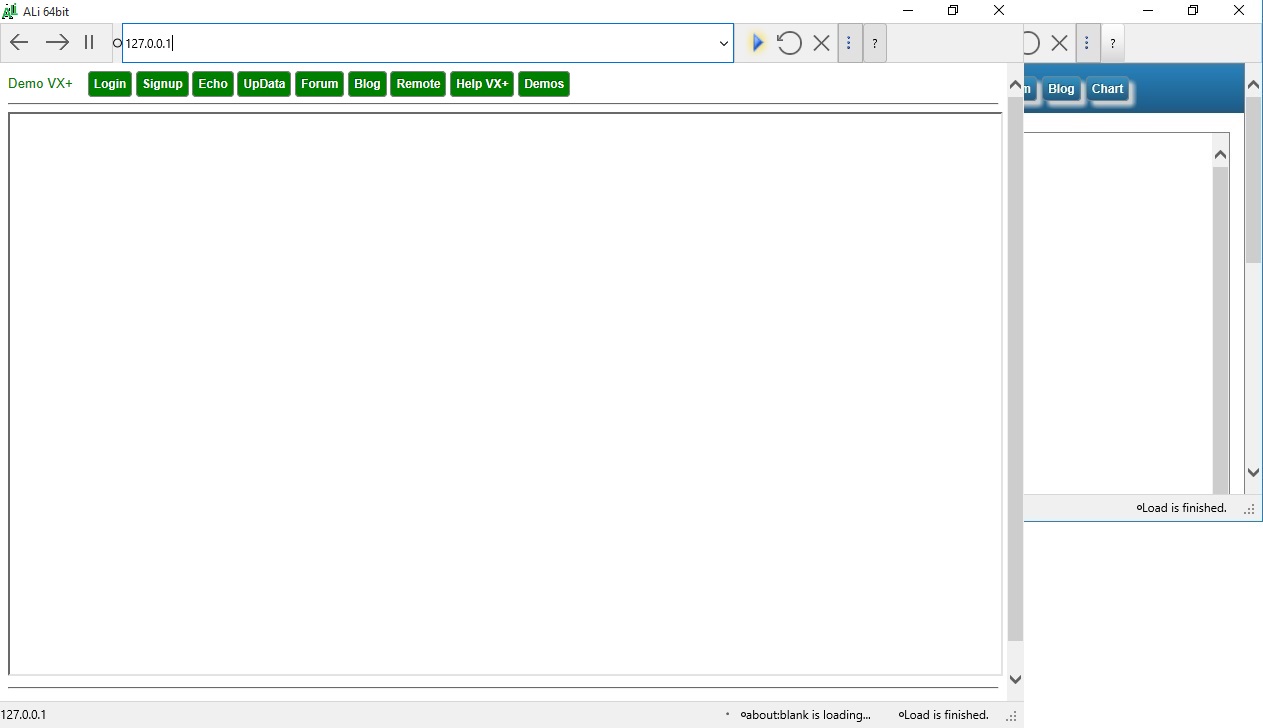
1.1. Created a simple static webpage. Example: this is a simple webpage, it look like :
<html >
<body>
This is simple webpage
Help VX+
</body>
</html>
This example created by microsoft Notepad and save as file name in folder :
D:\VX\WebRoot\simple.html
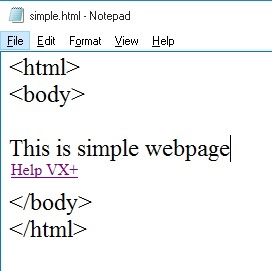
1.2. run VX+, input passwork.
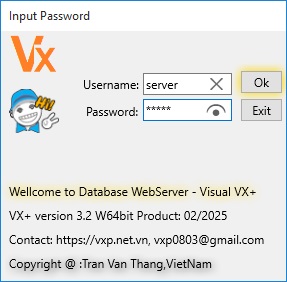
1.3. In mainmenu choose [Tools/Monitor Server] to call web server dialog.
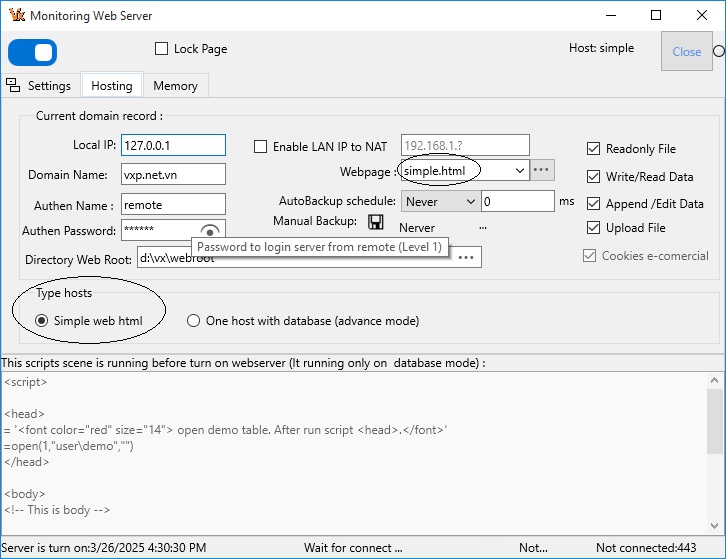
1.4. In webserver dialog, choose tab Host. In Host tab, you click to check box to select item [simple web html]:
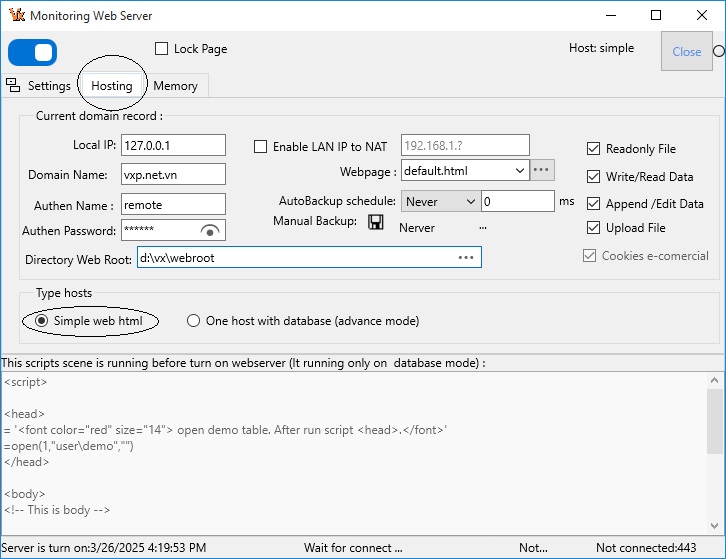
1.5. Turn On [Web Server button] and then Click [Lock] button. Now web server is allready.

1.6. Call web browser (I.E or Google Crome or FireFox, ALi). And input addrees 127.0.0.1 to Url.
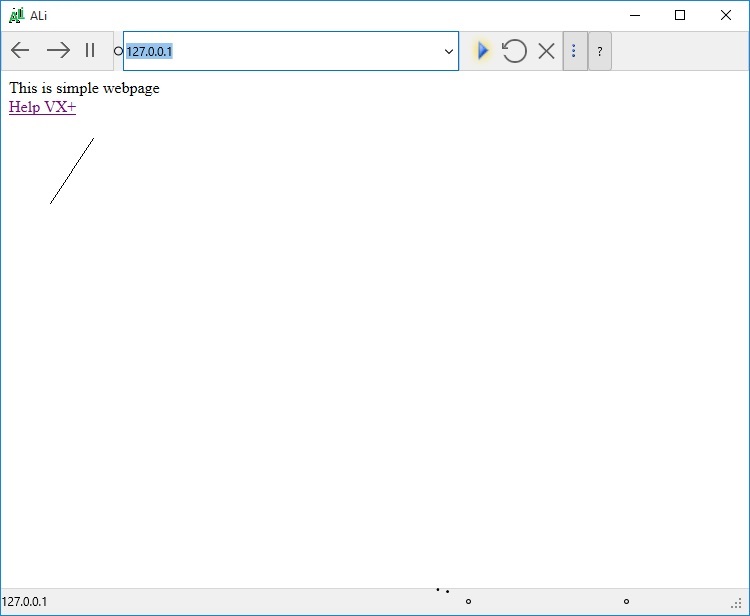
Some time you want to support many simple host for popular.
Example, you need make 03 webpage (Thomson, Biden, Trump).
You need create 03 subdir in webroot, like:
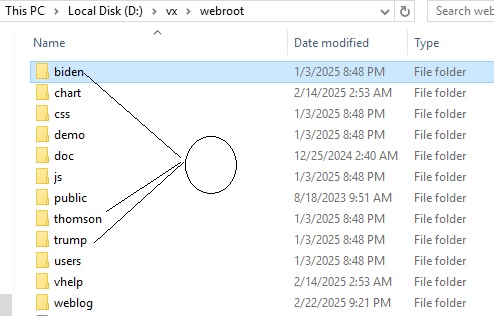
In this 03 sub directory, you put 03 webpage. default.html
- In [webroot/biden]
file default.html, like:<html >
<body>
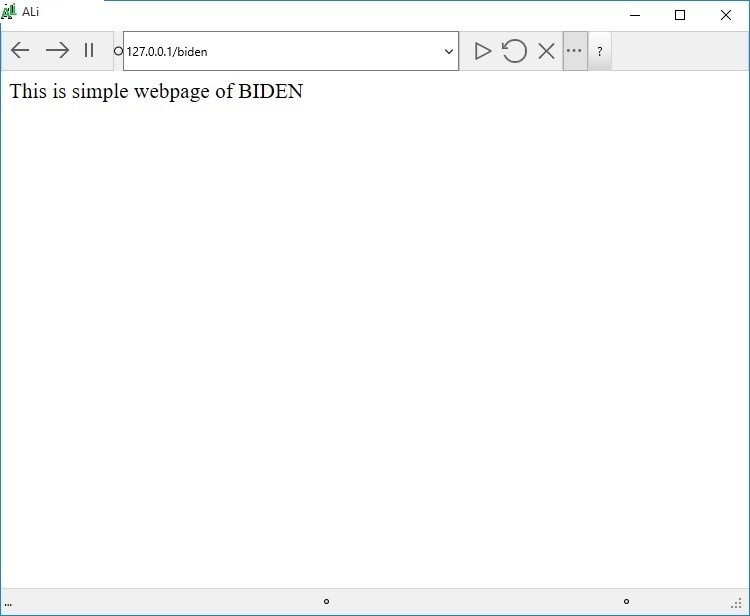
This is simple webpage of BIDEN
</body>
</html>
- In [webroot/thomson]
file default.html, like:<html >
<body>
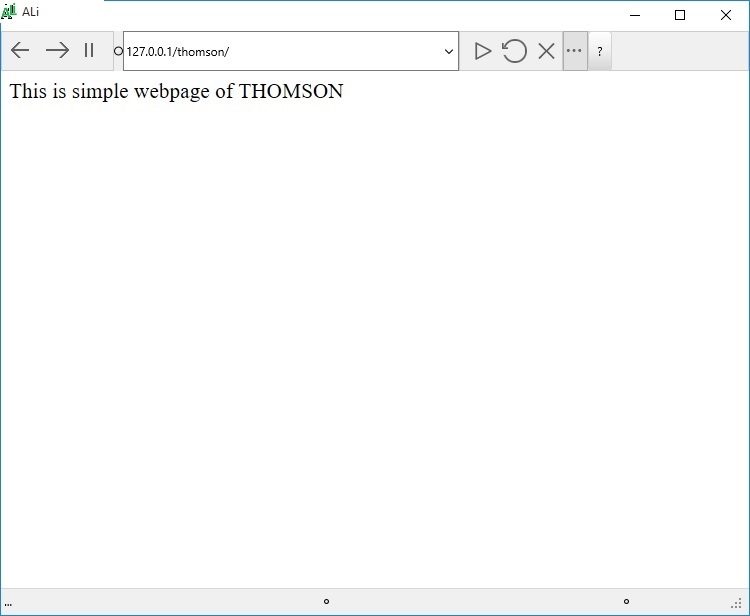
This is simple webpage of THOMSON
</body>
</html>
- In [webroot/trump]
file default.html, like:<html >
<body>
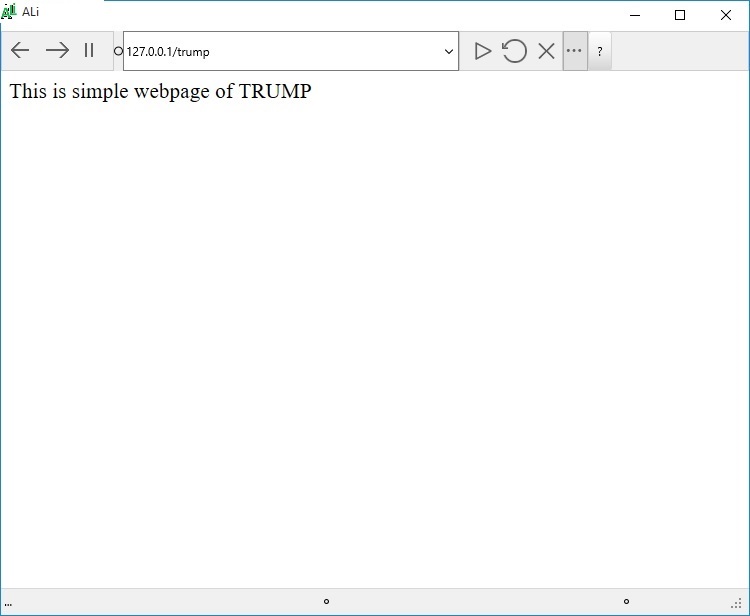
This is simple webpage of TRUMP
</body>
</html>
After that, In VX+, you turn Web Server - [Tools/Monitor Server], like:
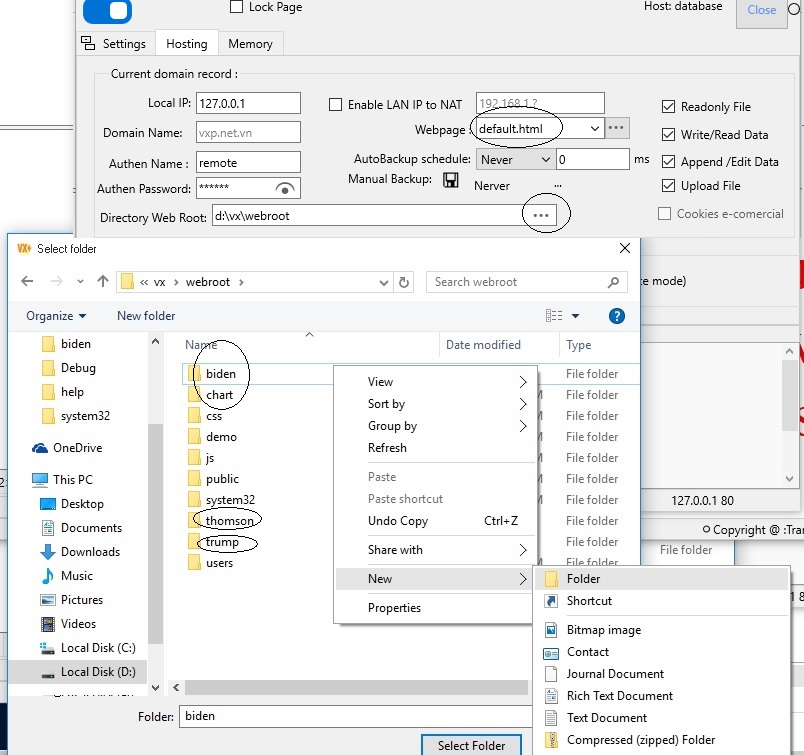
Call Web Browser and Input Url: 127.0.0.1/biden
Input Url: 127.0.0.1/thomson
Input Url: 127.0.0.1/trump
You can do that for evryone.
This dynamic example to change data inside server.
You can see original data for example: Original data for example
You can see source code example in directory WEBROOT after installed VX+.
source for example
- default.html. This main webpage.
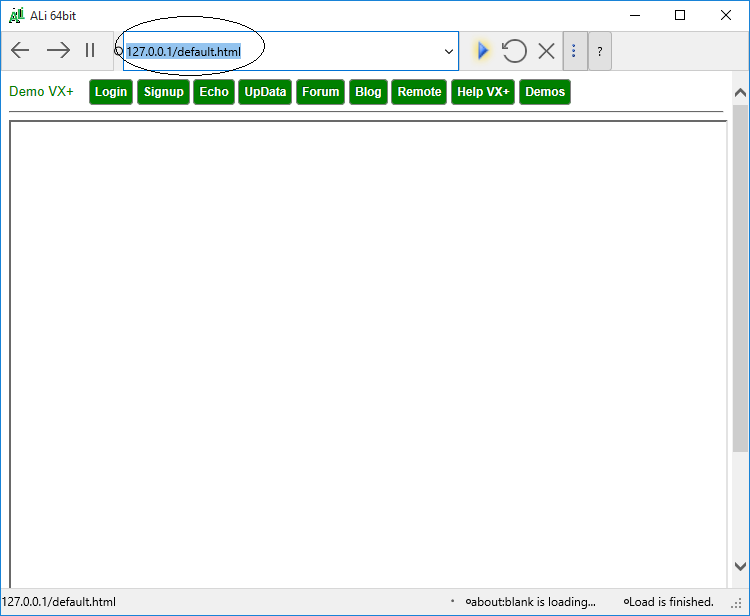
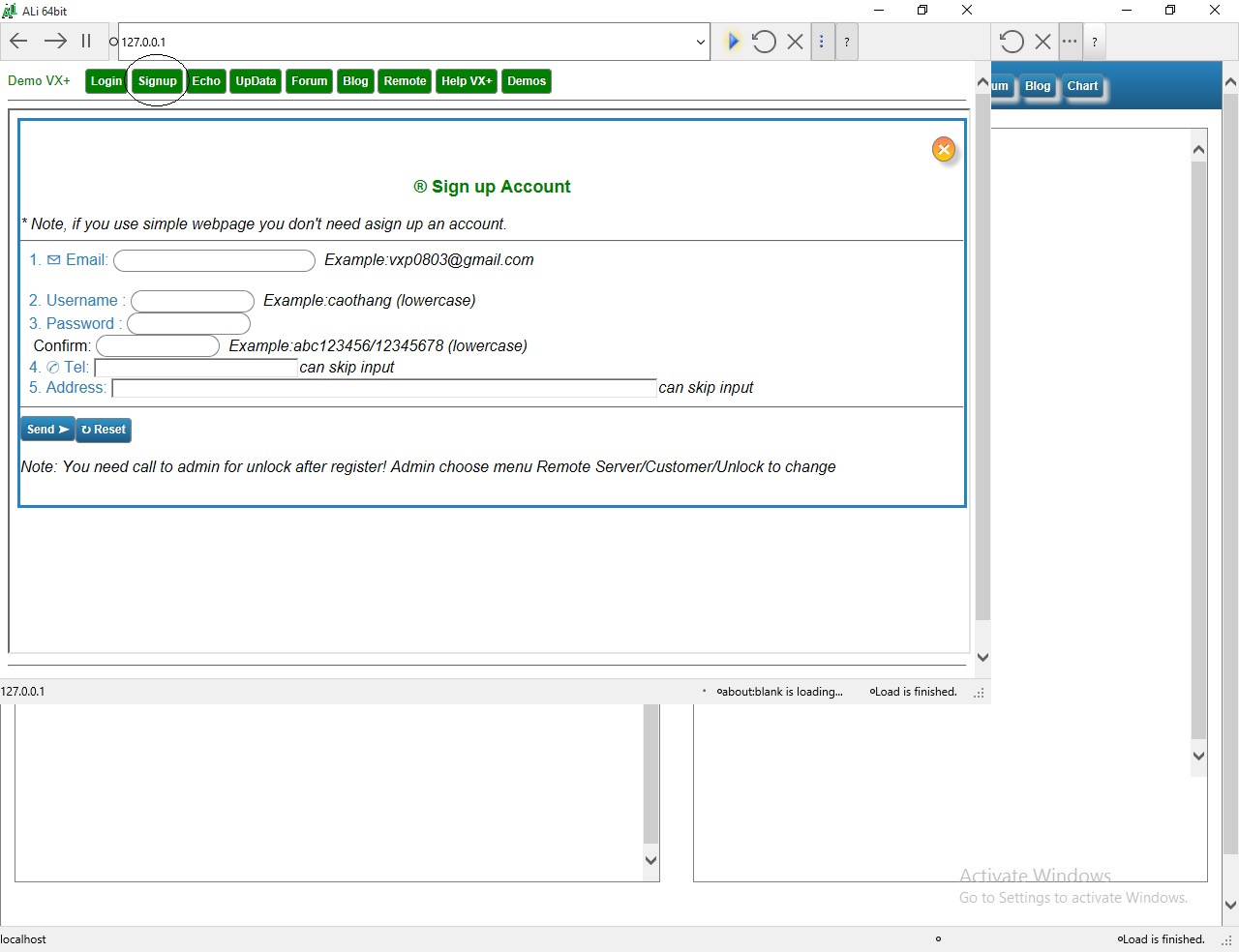
- signup.htm. This used, remote user to signup for server.
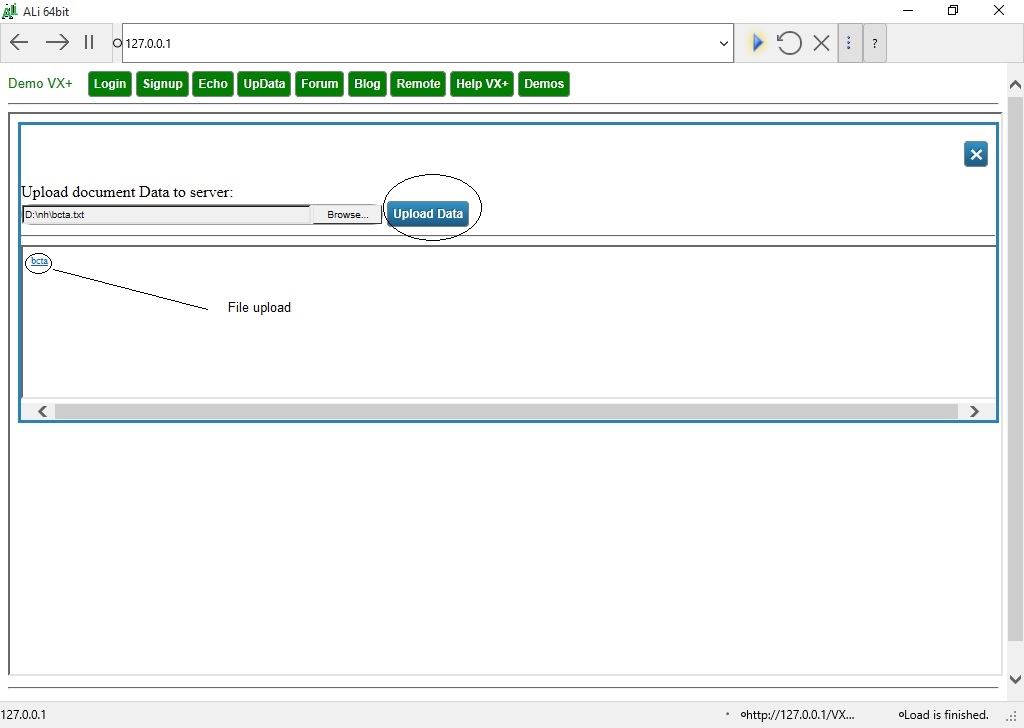
- updata.htm. This webpage used to remote updata file to data of server (everyone can see) .
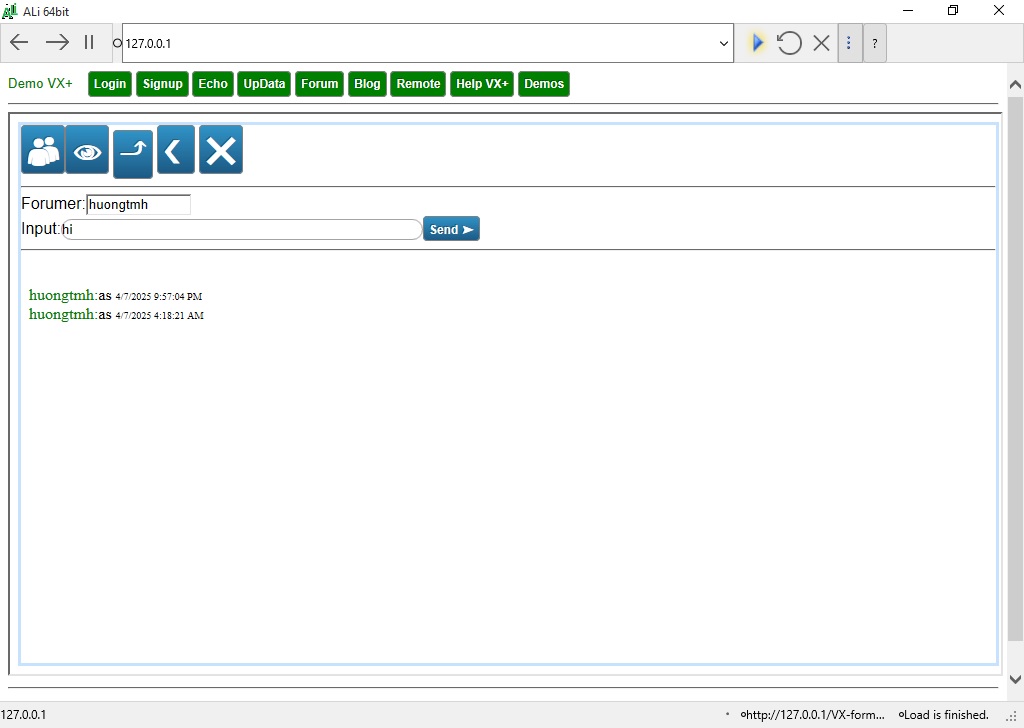
- sys/forum.htm. This system webpage used forum, all documents put in public of server .
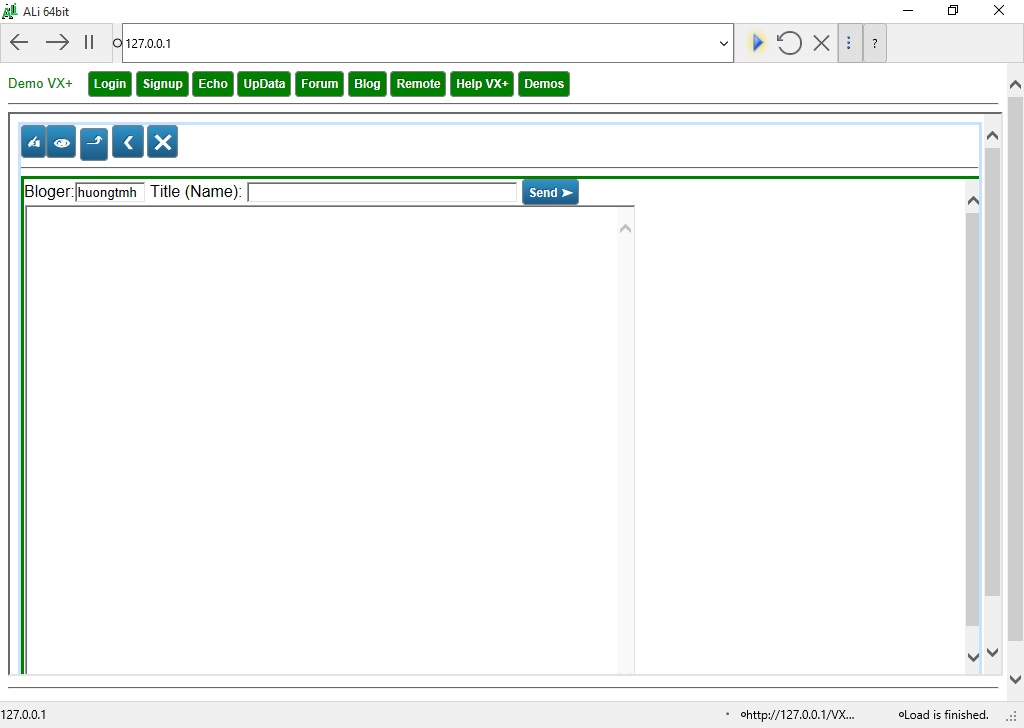
- sys/blog.htm. This system webpage used blog, all documents of username put in private of server. Only username can see .
- demo/demo_demos.htm. This webpage used example to uses Javascript Functions Addition of VX+.
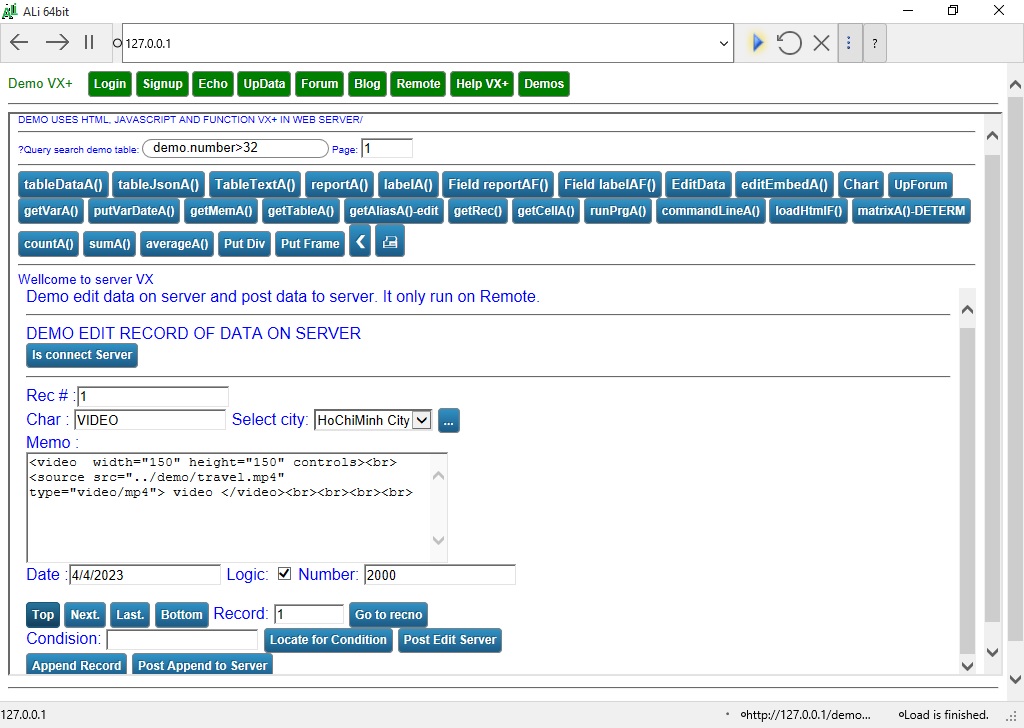
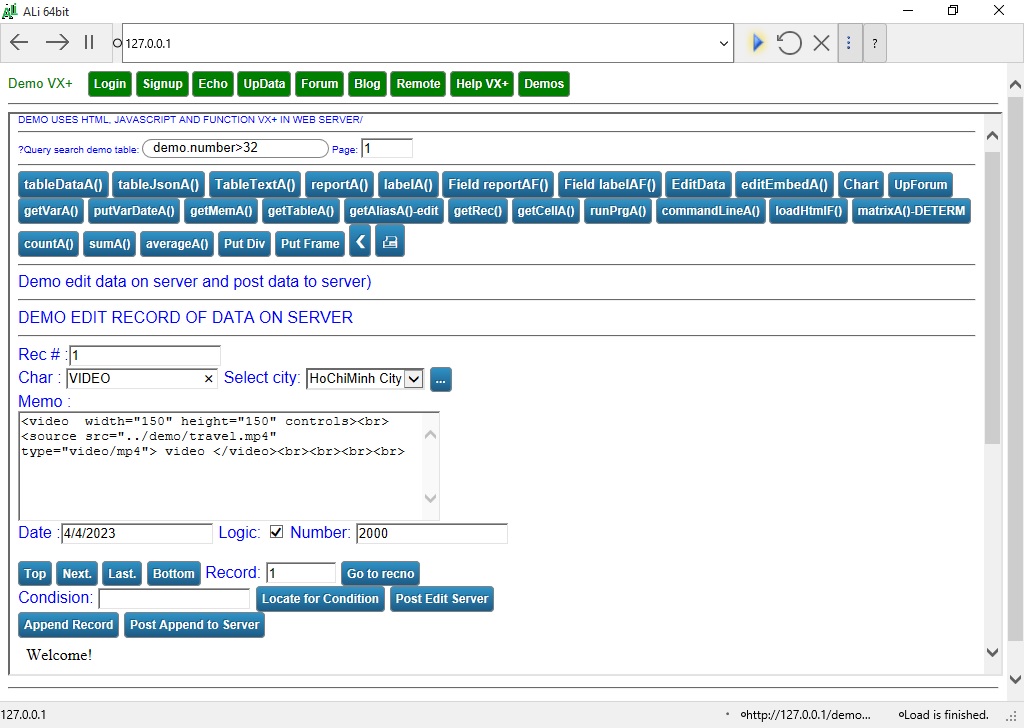
- demo/demo_edit.htm. This webpage used to modify 1 record data or append a record in server.
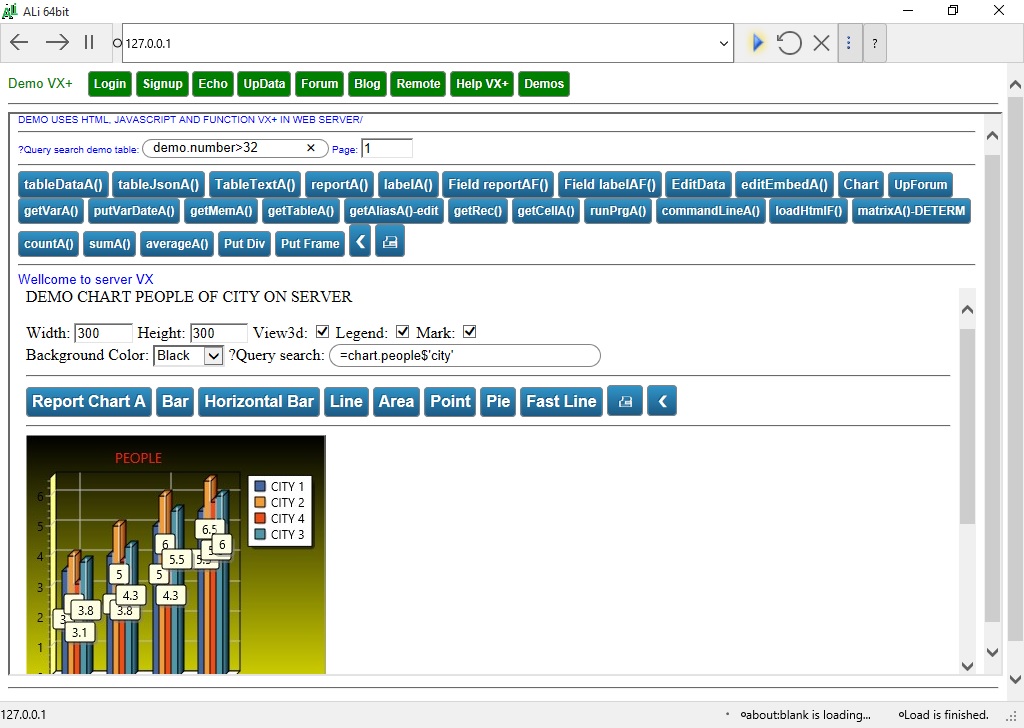
- demo/demo_chart.htm. This webpage used show chart image (line, bar, ...).
And data for example put in directory USER:
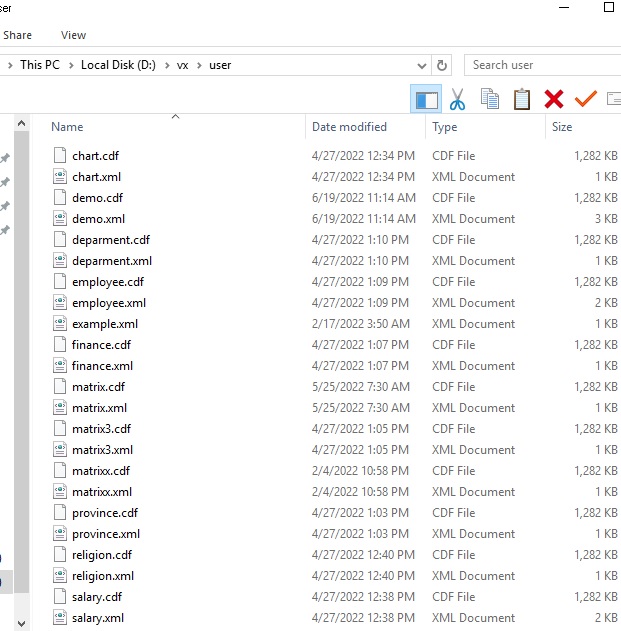
Original data for example:
- chart.cdf
- demo.cdf
- department.cdf
- employee.cdf
- finace.cdf
- ftype.cdf
- matrix.cdf
- matrix3.cdf
- matrixx.cdf
- province.cdf
- religion.cdf
- salary.cdf
Click to see how created, modify, original data for example